
Switch from another integration to Connex for NEXT ENGINE
Published:2026-11-16 14:28/Updated:2026-11-16 14:31
This page is for shops that already connect SHOPLINE and NEXT ENGINE through another integration service (the "previous integration") and are switching to Connex.
When you activate Connex, it matches sales orders already in NEXT ENGINE with your SHOPLINE orders. It also recognizes sales orders registered by the previous integration, so the same order is never sent again. When a sales order registered by the previous integration is shipped later, Connex writes the shipment back to SHOPLINE.
The most important point: stop both "orders" and "inventory" in the previous integration
Warning
Stop both order sending and inventory writes in the previous integration before you activate Connex.
- If you stop only inventory writes and order sending keeps running, new orders are sent by both the previous integration and Connex, and the same order appears twice in NEXT ENGINE.
- If inventory writes keep running, the previous integration and Connex overwrite each other's SHOPLINE inventory.
Follow the previous integration service's instructions to stop it.
Steps
1. Prepare in advance (do not activate yet)
Finish the following before the switch day. The previous integration can keep running.
- Add a NEXT ENGINE connection
- Complete steps 1–3 of the initial setup. Choose the shop where the previous integration registered orders.
- In [Product sync], check that SHOPLINE SKUs match NEXT ENGINE product codes.
- Check the delivery and payment mappings. Values registered in NEXT ENGINE's 支払発送変換設定 for the previous integration continue to be used.
In step 4, clicking [Save settings and check] saves your settings and checks whether orders in the selected shop match your SHOPLINE orders (it does not activate anything). If M in "{M} of the latest {N} match" is not 0, the shop is most likely correct.
2. Choose the switch day
Choose a time with few orders. Orders placed between stopping the previous integration and activating Connex are also sent by Connex with the setting in step 4.
3. Stop the previous integration
Stop both order sending and inventory writes in the previous integration.
4. Activate Connex
In Check orders in step 4 of the initial setup, complete these three items and click [Save & Enable].
- Click [Save settings and check] and confirm that orders match.
- Check [I have stopped inventory writes from the previous integration].
- Leave [Also send unshipped orders from before activation] on. Connex sends unshipped orders that the previous integration did not send (including orders placed while it was stopped).
5. What to check after the switch
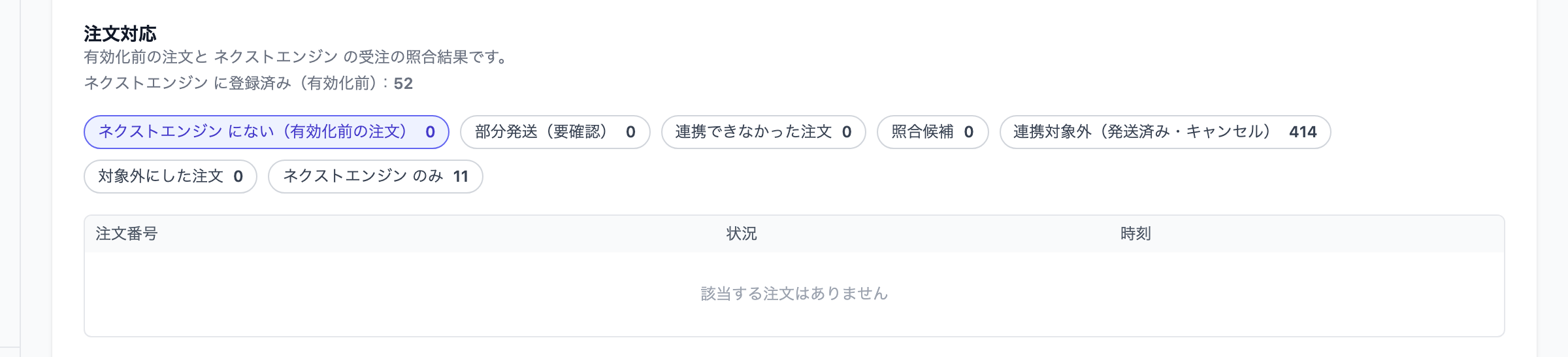
After activation, Connex matches NEXT ENGINE orders with SHOPLINE orders. Inventory sync starts only after matching completes (until then, [Overview] shows "Inventory sync starts after matching completes").
When matching is complete, check the following in the [Orders] tab.
| Where | What to check |
|---|---|
| Already in NEXT ENGINE (before activation) | Are the sales orders registered by the previous integration counted here? Orders here are not resent |
| Not in NEXT ENGINE (before activation) | Unshipped orders not yet in NEXT ENGINE. They show "Will be sent automatically" and are sent automatically |
| Partially shipped (review) / Possible matches | If the count is not 0, review them and send or mark as not sent |
| NEXT ENGINE only | Orders unrelated to SHOPLINE, such as orders from other marketplaces. No action needed |
Also check:
- In the [Inventory sync] tab, NEXT ENGINE and SHOPLINE inventory show "Match"
- The first order placed after the switch is registered as a sales order in NEXT ENGINE
- There are no duplicate sales orders in NEXT ENGINE (if there are, confirm that order sending in the previous integration is stopped and cancel one of them in NEXT ENGINE)
How are sales orders from the previous integration recognized?
By the shop slip number (店舗伝票番号) of the sales order. Connex recognizes it whether it is the SHOPLINE order number or the order ID (a long number) used by some integration services.
If you have products without a SKU
Orders containing a product without a SKU are not linked to NEXT ENGINE by default. The basic fix is to set a SKU for the product.
If you do not ship from NEXT ENGINE and want to skip lines without a SKU (options such as gift wrapping, shipping-fee items, etc.) while still linking the order, there is a setting that adds the amount of those lines to other charges and writes the product name in the note. It cannot be used for products whose inventory is managed in NEXT ENGINE. If you need it, contact your representative before switching.
Need help?
See Common NEXT ENGINE errors. If that does not solve it, contact support.
Was this article helpful?