
Add a NEXT ENGINE connection
Published:2026-11-16 14:28/Updated:2026-11-16 14:31
To use NEXT ENGINE (NE) as the linked system for order & inventory auto-sync, you need a NEXT ENGINE connection in addition to your SHOPLINE connection. You create it by logging in to NEXT ENGINE and granting access.
Prerequisites
- You have a NEXT ENGINE contract and can log in
- The app "Connex|SHOPLINE 自動連携" is available in your NEXT ENGINE account (see below)
- A shop that receives SHOPLINE orders is registered in NEXT ENGINE (sales orders are created in this shop)
Preparing NEXT ENGINE
- In NEXT ENGINE, add "Connex|SHOPLINE 自動連携" from [アプリを探す] (Find apps).
- In NEXT ENGINE, go to [設定]→[アプリ]→[利用ユーザー設定] (Settings → Apps → User settings) and allow the person who will create the Connex connection to use this app.
Note
If the user is not allowed in the user settings, NEXT ENGINE shows "指定したアプリがみつかりませんでした" (the specified app was not found) during authorization, and the connection cannot be created.
Steps
- Go to [Connections] in the left menu and click [Add connected account] at the top right.
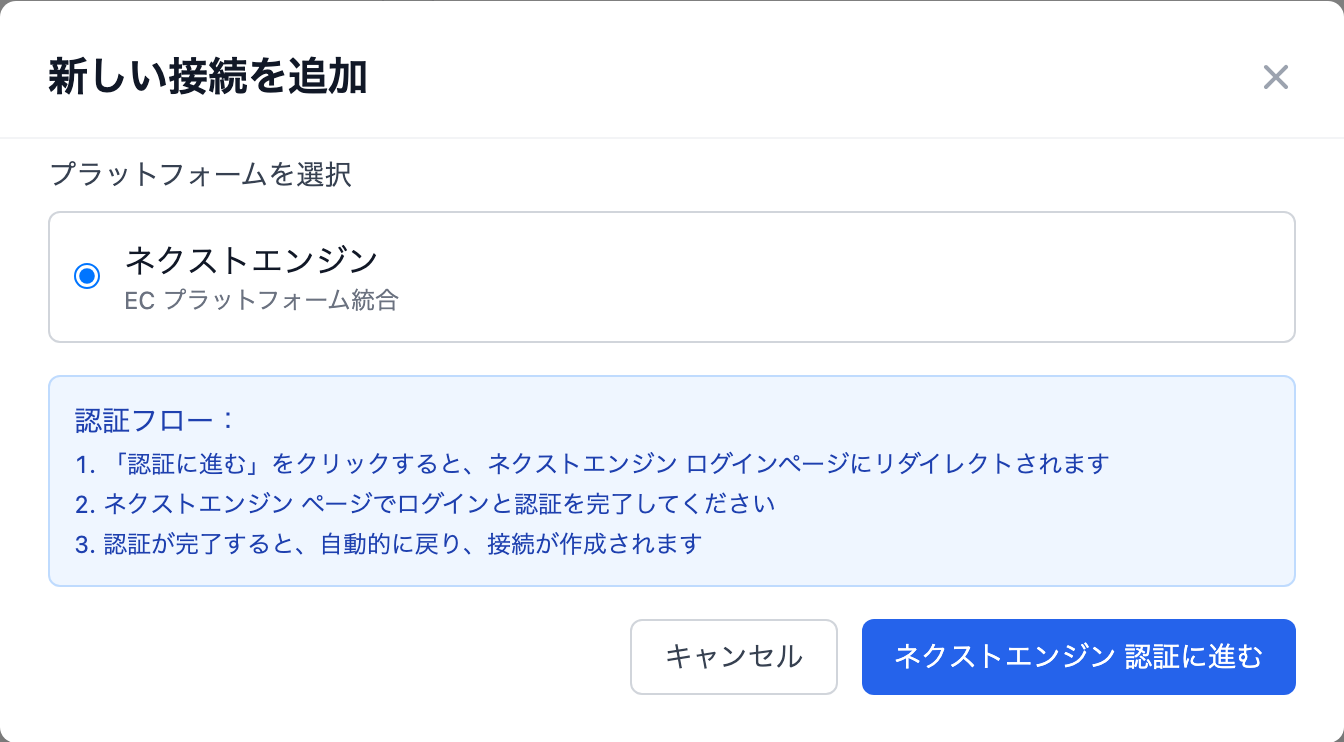
- In [Select Platform], choose NEXT ENGINE.
- Click [Go to NEXT ENGINE Authorization]. You are taken to the NEXT ENGINE login page.
- Log in to NEXT ENGINE and allow the connection.
- When authorization completes, you return to Connex automatically and the connection is added to the list. The connection is named after the company name registered in NEXT ENGINE.
When the connection is created, the list of shops in NEXT ENGINE is imported. Select the connection to see them under [Linked stores] in the detail panel. In the auto-sync initial setup, you choose one of these shops to receive SHOPLINE orders.
Production and test environments
NEXT ENGINE has a production environment used for real operations and a test environment used by app developers.
- Connections created by merchants always use the production environment. There is nothing to choose.
- The [Environment] option does not appear on the connection screen. It is shown only to SHOPLINE internal members who create connections for testing.
After creating the connection
- In the [Link Settings] tab of the connection detail panel, map SHOPLINE delivery and payment methods to NEXT ENGINE delivery and payment categories (optional — see NEXT ENGINE initial setup).
- Continue to the NEXT ENGINE initial setup.
If you have been connecting SHOPLINE and NEXT ENGINE through another integration service, first read Switching from another integration.
Troubleshooting
| Message / situation | What to do |
|---|---|
| "The NEXT ENGINE production environment is not set up yet, so you cannot connect right now. Please contact your representative." | Setup on the Connex side is not complete yet. Please contact your representative |
| "The authorization session expired, so no connection was created." | The authorization screen was left open too long. Go back to [Connections] and click [Go to NEXT ENGINE Authorization] again |
| NEXT ENGINE shows "指定したアプリがみつかりませんでした" | Check the user settings in Preparing NEXT ENGINE |
| A shop added in NEXT ENGINE does not appear in Connex | Run [Reauthorize] in the connection detail panel |
| Something other than Active is shown next to the connection | See Check the connection status. [Reauthorize] fixes it in most cases |
Was this article helpful?