
Common NEXT ENGINE errors and how to fix them
Published:2026-11-16 14:28/Updated:2026-11-18 11:12
Common situations with the NEXT ENGINE integration and how to fix them. For anything about orders, first check the reason in the [Orders] tab of [Order & Inventory Auto Sync].
The reason says "NE marked this order as "insufficient import data" or needing a check"
The sales order is registered in NEXT ENGINE, but NEXT ENGINE could not confirm its contents (取込情報不足), so processing has stopped. The rest of the reason lists the items that stopped it.
Example reason: "NE marked this order as "insufficient import data" or needing a check: The payment method could not be converted to an NE payment type (map the payment method in Connex Link settings)"
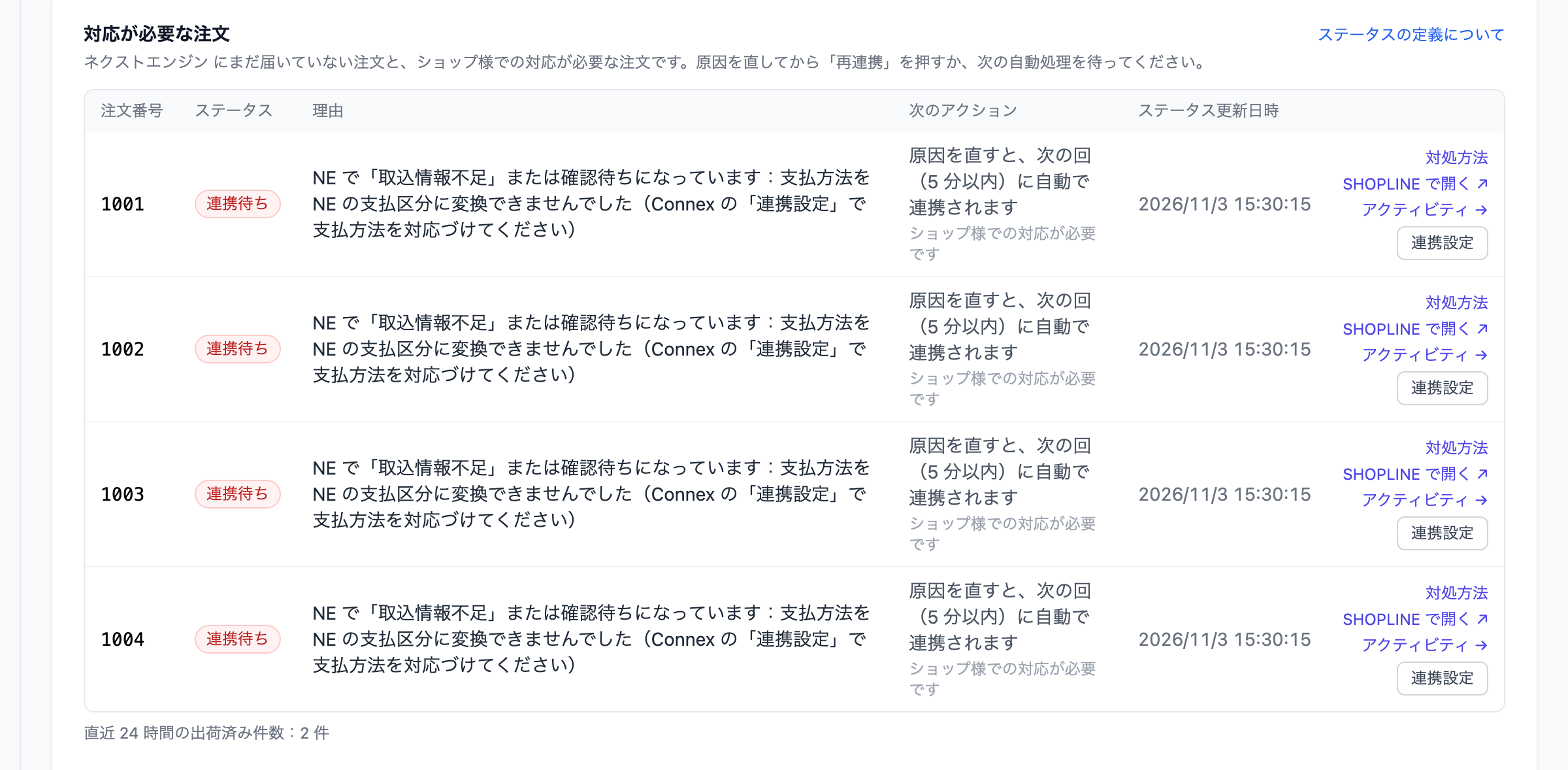
Items you fix in Connex settings or by registering products
| Item shown in the reason | How to fix |
|---|---|
| The payment method could not be converted to an NE payment type | In the [Link Settings] tab in Connections (or [Settings]→[Delivery & payment mapping] in auto-sync), map the SHOPLINE payment method to a NEXT ENGINE payment category |
| The delivery method could not be converted to an NE delivery type | On the same screen, map the SHOPLINE delivery plan to a NEXT ENGINE delivery category |
| The product code on line N is not in the NE product master | Register a product in NEXT ENGINE with the same product code as the SHOPLINE SKU |
You can also convert payment and delivery methods by registering values in NEXT ENGINE under [設定]→[受注]→[支払発送変換設定]. After you fix the cause, the order is linked automatically in the next run (within 5 minutes).
Note
If you chose a category in the mapping table but it shows "(not set in NE)", that category name is not registered in NEXT ENGINE's 支払発送変換設定. Orders are still registered but stop as 取込情報不足. In NEXT ENGINE, go to [設定]→[受注]→[支払発送変換設定] and register the category name as the source text (once is enough).
Items you check on the sales order in NEXT ENGINE
For the following items, NEXT ENGINE is asking you to review the order. Open the sales order in NEXT ENGINE, then check and correct it.
- Some fields contain garbled characters
- Both phone number and email are empty
- The phone number country code needs checking
- The postal code does not match the address
- The address is too long / The name is too long
- The street number needs checking
- The tax rate on a line needs checking
If "Other NE check items (codes …)" is shown, check the listed codes on the sales order in NEXT ENGINE.
The reason says "Sending is on hold because the payment method is not yet confirmed in SHOPLINE"
Orders whose payment method is not yet confirmed in SHOPLINE are held instead of being sent to NEXT ENGINE. Connex rechecks every 5 minutes and sends the order once the payment method is confirmed. If it is still unconfirmed 30 minutes after the order was placed, the order is sent with the payment method left blank. You don't need to do anything in the meantime.
The reason says "Sending is on hold because the SHOPLINE tax setting and the NEXT ENGINE shop tax setting (tax-inclusive / tax-exclusive) do not match"
If the SHOPLINE tax setting and the "税区分" (tax category) in the NEXT ENGINE shop settings do not match, Connex holds the order and shows it as "Waiting". If it were sent anyway, NEXT ENGINE would recalculate the amounts with tax-inclusive and tax-exclusive swapped, and the sales order amounts would be wrong.
Make these two settings match:
| Where | Screen | Setting |
|---|---|---|
| SHOPLINE | "すべての価格を税込に設定する" (All prices include tax) in the tax settings of the admin | On = tax-inclusive / Off = tax-exclusive |
| NEXT ENGINE | [設定]→[店舗設定], open the shop for SHOPLINE, "税区分" | 税込 (inclusive) / 税抜 (exclusive) |
| SHOPLINE | NEXT ENGINE shop | Result |
|---|---|---|
| Inclusive (On) | 税込 | Sent as usual |
| Exclusive (Off) | 税抜 | Sent as usual |
| Inclusive (On) | 税抜 | Held |
| Exclusive (Off) | 税込 | Held |
Once you change one side so they match, held orders are sent automatically. You don't need to press [Resend].
- Held orders are still subtracted in the inventory calculation, so holding them does not cause overselling.
- Orders with no tax (for example, tax-exempt orders) are not checked and are sent as usual.
- You can choose the NEXT ENGINE company setting (税抜・税込の設定) freely for your accounting. It does not affect Connex's check.
Orders NEXT ENGINE did not accept
When NEXT ENGINE does not accept an order, its status becomes "Link failed" and the reason and next action are shown.
| Reason | Next action |
|---|---|
| NEXT ENGINE was under maintenance or busy | It is resent automatically later |
| NEXT ENGINE was importing orders, taking stock, or printing slips | It is resent automatically once that finishes |
| Your NEXT ENGINE account is suspended | Check your contract with NEXT ENGINE, then press [Resend] once it is restored |
| The NEXT ENGINE connection authorization has expired | Reauthorize the NEXT ENGINE connection in [Connections], then press [Resend] |
| The Connex app has not been granted the required permission | Allow the Connex app permission in the NEXT ENGINE app settings, then press [Resend] |
| A value sent (payment or delivery type, etc.) is not registered in NEXT ENGINE / the payment or delivery method could not be converted | Map the payment and delivery methods in Connex [Link Settings], then press [Resend] |
| There is no order bulk-registration pattern | Create an order bulk-registration pattern (generic) in NEXT ENGINE, then press [Resend] |
| The NEXT ENGINE order is already shipped, cancelled, or otherwise locked | Check and correct the order directly in NEXT ENGINE |
| An order with the same order number already exists | Check the existing order in NEXT ENGINE. Connex will not send it again to avoid duplicates |
For rows that show "Connex will handle this", Connex checks the cause and resends. No action is needed from your store.
Orders containing a product without a SKU are not linked
The [Product sync] tab shows "Orders containing a product without a SKU are not sent to NEXT ENGINE." Click the product name and set a SKU in SHOPLINE. After that, you can resend with [Resend].
Note
If products without a SKU (options such as gift wrapping, shipping-fee items, etc.) are not shipped from NEXT ENGINE, there is a setting that skips those lines and still links the order (the amount goes to other charges and the product name is added to the note). It cannot be used for products whose inventory is managed in NEXT ENGINE. If you need it, please contact your representative.
"None of the orders in the selected shop match your SHOPLINE orders" is shown
This appears in Check orders in step 4 of the initial setup. The NEXT ENGINE shop selected in step 1 may not be the shop for SHOPLINE. Click [Change connection] and choose again. If it is a newly created shop with no orders yet, click [It is a new shop, continue] (Check orders).
[Save & Enable] cannot be clicked / "Please confirm that inventory writes have been stopped"
The three items in Check orders are not complete. Click [Save settings and check], then check [I have stopped inventory writes from the previous integration].
Inventory is not reflected in SHOPLINE
| What to check | What to do |
|---|---|
| Is the Status in [Overview] set to Paused? | Switch it to Active |
| Does [Overview] show "Inventory sync starts after matching completes"? | Inventory is not written until matching after activation is complete. It starts automatically when matching finishes |
| Is the product shown as "Only in SHOPLINE" in [Product sync]? | Register a product with the same product code in NEXT ENGINE |
| Is it shown as "Failed" in the [Inventory sync] tab? | Check whether the product was deleted or unpublished in SHOPLINE |
Connex writes "NEXT ENGINE free stock − quantities of orders Connex has received but NEXT ENGINE has not yet allocated (引当)". Orders that have not reached NEXT ENGINE yet, or are waiting to link, are also subtracted, so the number may differ from the stock shown in NEXT ENGINE. The calculation runs about every minute, and Connex writes only when the result differs from the current SHOPLINE quantity.
Shipment was confirmed in NEXT ENGINE, but the SHOPLINE order is not marked as shipped
- Shipments are written back about one minute after shipment is confirmed. Any that are missed are written back together once a day between 0:00 and 1:00 (Japan time). If you are in a hurry, click [Sync now] at the top right.
- Orders in the "NEXT ENGINE only" group of the [Orders] tab are not linked to any SHOPLINE order, so they are not written back. Check that the shop slip number (店舗伝票番号) of the sales order is the SHOPLINE order number.
- You can see the write-back record and reason in [Activity] for that order.
The same order was registered twice in NEXT ENGINE
Order sending from another integration service may still be running. Stop both order sending and inventory writes in the other service, and cancel one of the duplicates in NEXT ENGINE (Switching from another integration).
Something other than "Active" is shown next to the connection
Authorization for the NEXT ENGINE connection has expired. Select the connection in [Connections] and click [Reauthorize] (Check the connection status).
Was this article helpful?