
Daily operations with NEXT ENGINE (orders, shipments, inventory, Orders tab)
Published:2026-11-16 14:28/Updated:2026-11-17 19:32
After activation, the following run automatically. Your daily task is only to fix orders that get stuck.
| Process | Direction | Timing |
|---|---|---|
| Order registration | SHOPLINE → NEXT ENGINE | As soon as an order is placed, it is registered as a sales order |
| Order changes | SHOPLINE → NEXT ENGINE | Cancellations, line quantity changes, payment, delivery address and note changes, returns and refunds are applied — only what changed. Sales orders already confirmed as shipped (出荷確定) are not changed |
| Shipment write-back | NEXT ENGINE → SHOPLINE | About one minute after shipment is confirmed in NEXT ENGINE, the SHOPLINE order is marked as shipped, with the carrier and tracking number. Any that are missed are written back once a day between 0:00 and 1:00 (Japan time) |
| Payment write-back | NEXT ENGINE → SHOPLINE | For orders whose payment is confirmed at shipping (such as cash on delivery), the payment status is reflected in SHOPLINE |
| Inventory sync | NEXT ENGINE → SHOPLINE | About every minute, Connex calculates NEXT ENGINE free stock (フリー在庫) minus quantities of orders it has received that are not yet allocated (引当), and writes it to SHOPLINE when it differs from the SHOPLINE quantity |
The shop slip number (店舗伝票番号) of the sales order is the SHOPLINE order number.
Click [Sync now] at the top right to run inventory sync and shipment write-back once without waiting for the schedule.
Overview
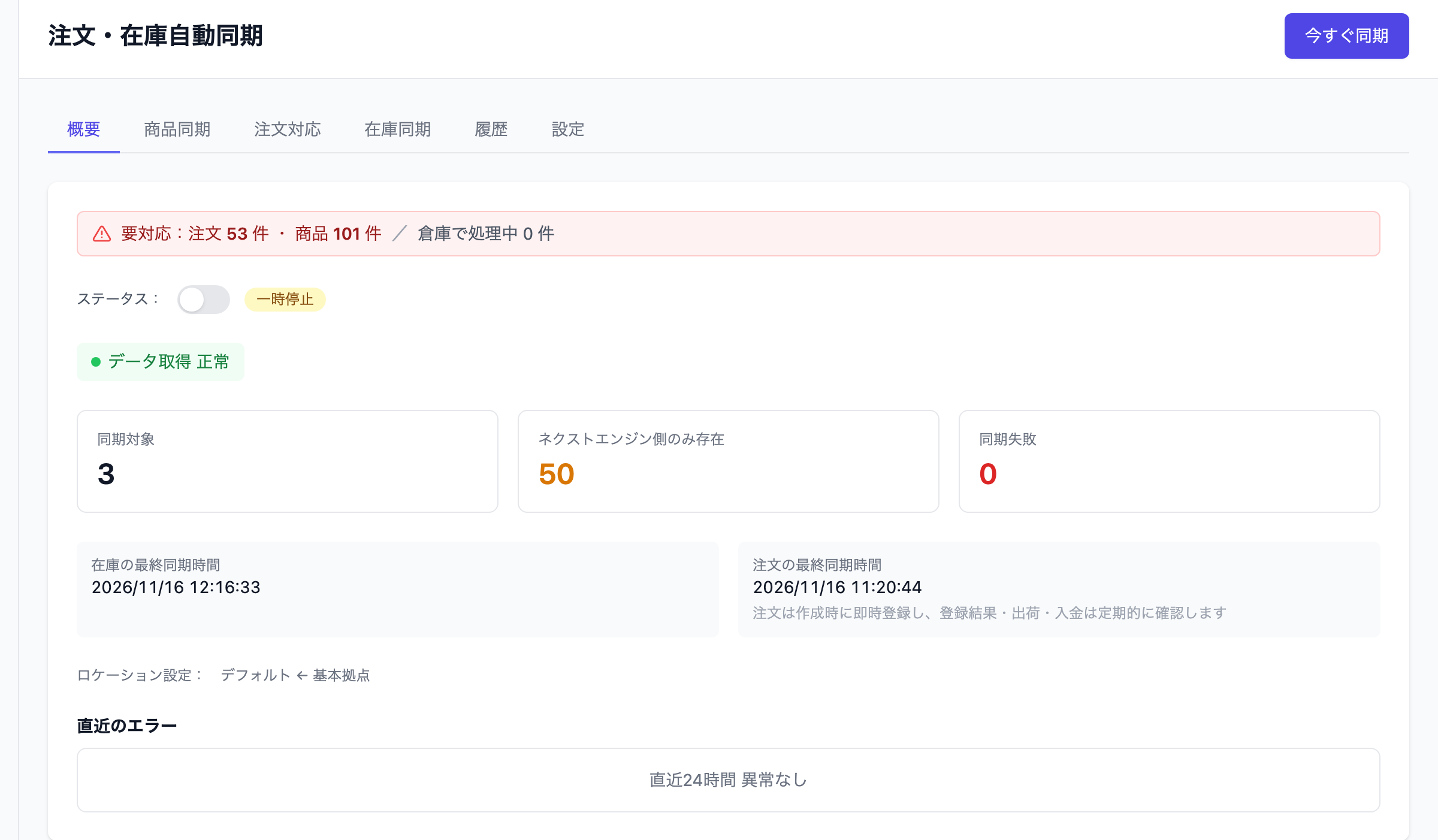
The first tab shown when you open [Order & Inventory Auto Sync].
- "Action needed: N orders · N products" at the top: orders and products that need action by your store. Click to go to the tab. "N in warehouse" are orders waiting for shipment in NEXT ENGINE (no action needed).
- Status: switch between Active and Paused. While paused, orders are not registered, inventory is not written, and shipments are not written back.
- Three counts: [In sync] (products matched on both sides with inventory syncing) / [Only in NEXT ENGINE] / [Sync failures].
- "Last inventory sync" and "Last order sync": the last time each ran.
- "Location settings": which NEXT ENGINE location's inventory is written to which SHOPLINE location.
Orders
Everything about orders is in this tab, in three sections from top to bottom.
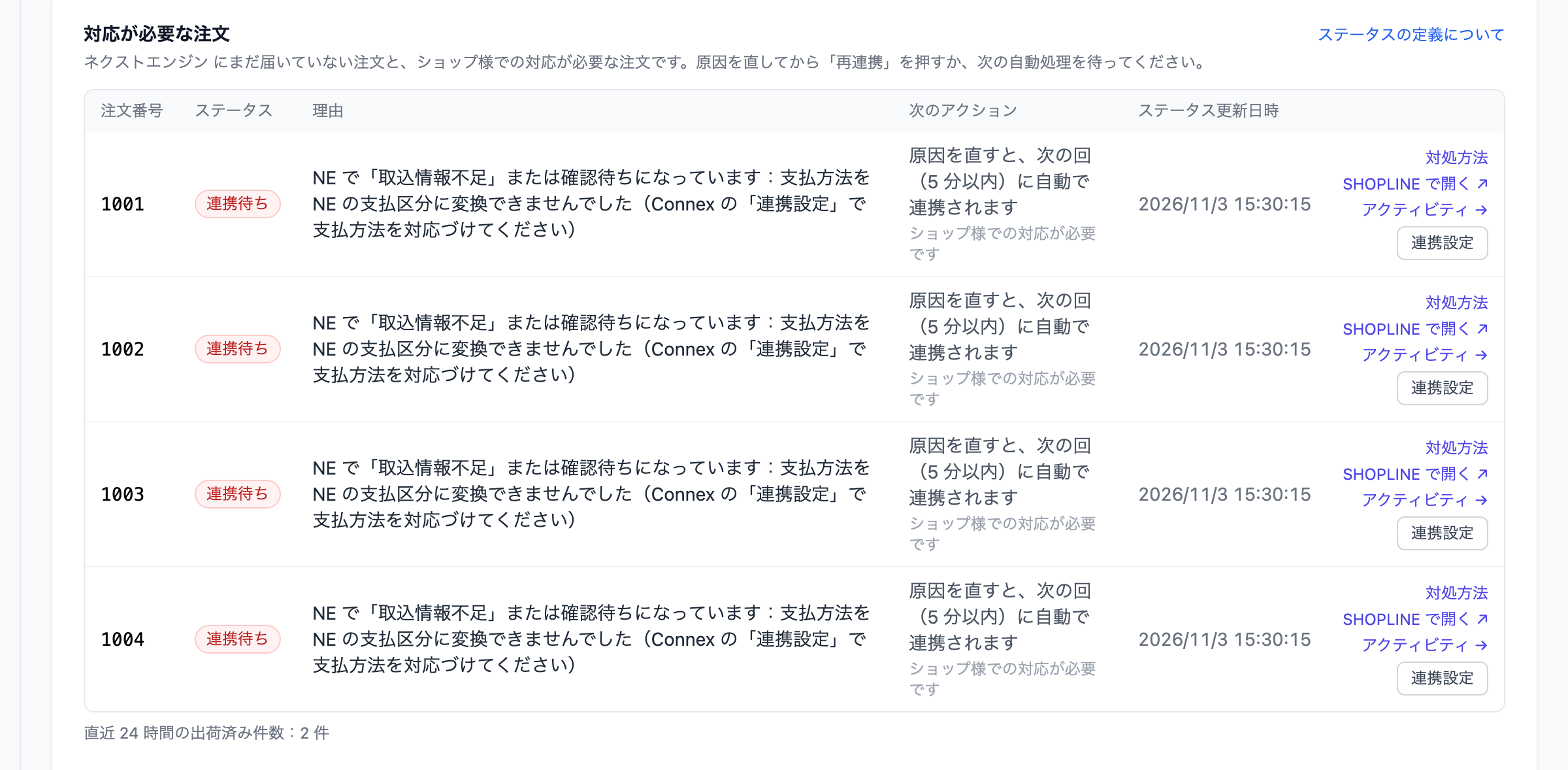
Orders that need action
Orders that have not reached NEXT ENGINE, and orders that need action by your store. Each row shows status, reason, next action (with who acts below it, such as "Action required by your store" or "Connex will handle this") and when the status changed, with [How to fix] [Open in SHOPLINE] [Activity] [Link settings].
| Status | Meaning | Next action |
|---|---|---|
| Waiting to link | Stopped in NEXT ENGINE, or not ready to send yet | After you fix the cause, it is linked automatically in the next run (within 5 minutes) |
| Link failed | Cannot be sent automatically, or NEXT ENGINE did not accept it | Follow the next action shown on the row (reasons NEXT ENGINE did not accept) |
| Resend pending | Your resend request was accepted | It is resent automatically |
The most common reason is "NE marked this order as "insufficient import data" or needing a check: …". See Common NEXT ENGINE errors.
Open "Status definitions" on the screen to see what each status means and who needs to act.
In the warehouse
Orders registered in NEXT ENGINE that have not finished shipping, including orders registered before the switch. Filter with [All] [Waiting on warehouse / payment] [In shipping]. These orders are only waiting for allocation and shipment in NEXT ENGINE; no action is needed.
Orders (matching results for pre-activation orders)
Matching results between orders that existed before activation and NEXT ENGINE orders. Each group shows a count; click it to switch the list.
| Group | Meaning | What your store does |
|---|---|---|
| Already in NEXT ENGINE (before activation) | Orders already in NEXT ENGINE. They are never sent again; when shipped, the shipment is written back to SHOPLINE | None |
| Not in NEXT ENGINE (before activation) | Orders in SHOPLINE but not in NEXT ENGINE. If "Also send unshipped orders from before activation" is on, they are sent automatically ("Will be sent automatically") | If the option is off, select them and click [Send N selected] or [Mark N selected as not sent] |
| Partially shipped (review) | Orders with only some lines shipped. Sending them as they are could ship the shipped lines again, so they are not sent automatically | Review, then send or mark as not sent |
| Could not be sent | Orders that failed when sending | Fix the cause and send again |
| Possible matches | NEXT ENGINE orders with no SHOPLINE order matching the order number, but with a candidate found from the line items | Review; mark as not sent if it is not a match |
| Not sent (shipped / cancelled) | Orders not sent because they were shipped or cancelled | None |
| Marked as not sent | Orders your store marked as not sent | None |
| NEXT ENGINE only | Orders that exist only in NEXT ENGINE (such as orders from other marketplaces) | None |
Inventory sync and Product sync
- [Inventory sync] tab: shows the latest NEXT ENGINE value and the current SHOPLINE value for each product. Filter with [Match] [Diff] [Failed]. A difference may disappear in the next sync, so check only products that keep showing a difference.
- [Product sync] tab: check that SHOPLINE SKUs match NEXT ENGINE product codes (see the products section of the initial setup).
History
Records of runs that actually did something. Filter by [Result] [Target] [Type] and date range.
- Target: Orders (sales order registration), Order changes, Shipments (shipment write-back), Inventory
- Type: Instant (runs right when an order is placed or changed), Scheduled, Catch-up (picks up missed orders), Manual, Initial run (matching after activation, etc.)
Expand a row to see the result and reason for each order or product handled in that run.
Notification emails
Connex emails you about things that need action by your store, such as orders that cannot be linked, an expired connection authorization, or a connected service that cannot be reached.
Set the recipients from the organization menu at the top of the screen: open [Organization Settings] and go to [Notification recipients]. Enter an email address and language, then click [Add]. If no recipients are set, notifications go to the organization owner. [Send test], pause and remove are on the same screen.
Note
Email notifications are not active yet. You can set the recipients now ([Send test] shows that notifications are not active, and no email is sent).
Was this article helpful?